GE VIVID E9 Touch Screen Calibration: Which Routine, and When
Same symptom on your system?
Tell us your model and what it is doing. A GEPROBE engineer replies with a diagnosis path, part options and pricing — usually within 6 hours, with no obligation.
Chat on WhatsApp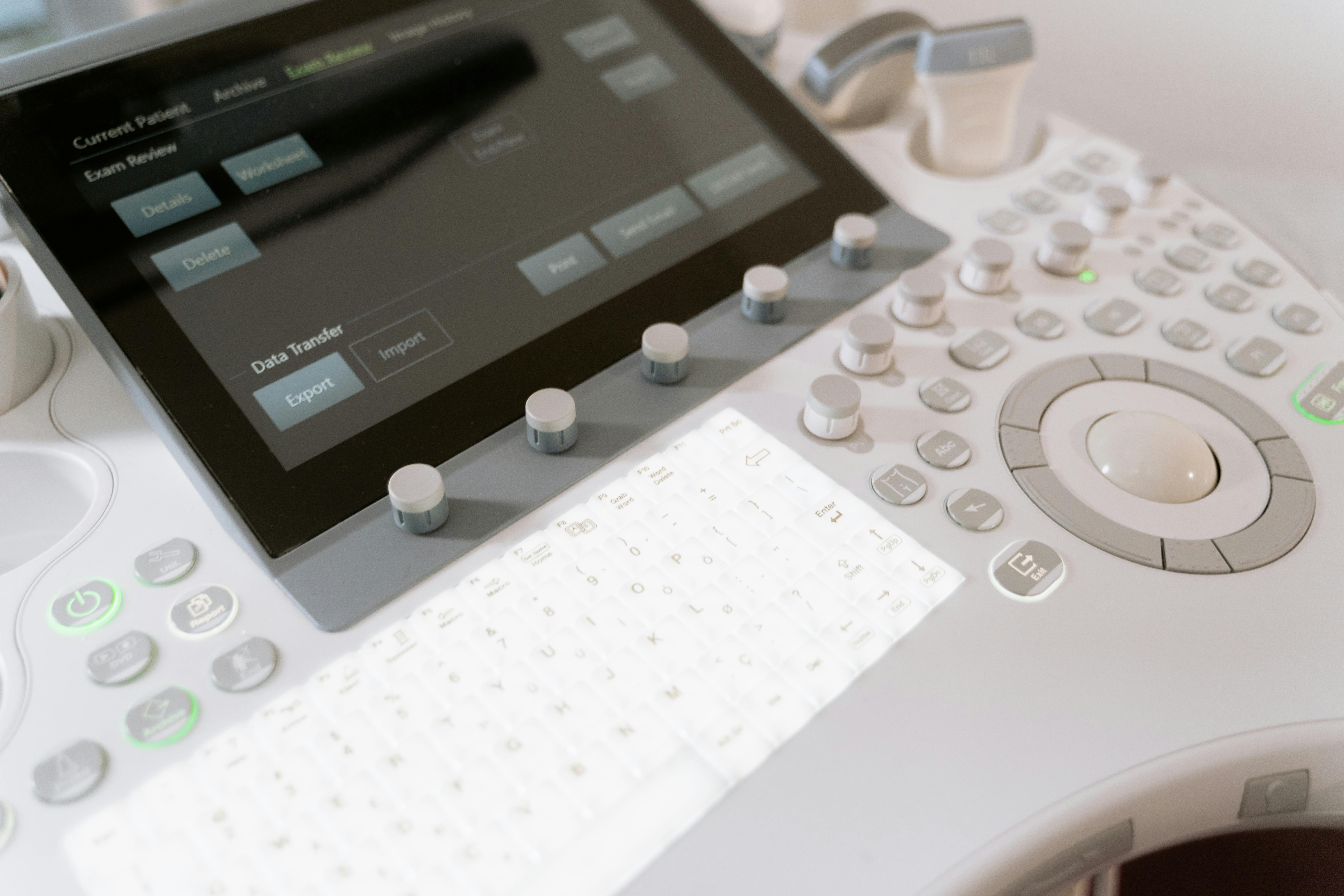
The VIVID E9 service manual carries a two-line entry titled "Wrong Key Activated on the Touch Panel." Two remedies sit under it: calibrate the touch panel, or replace the upper panel assembly. A short way further on is a neighbouring entry, "Touch Panel Not Responding," whose list runs to three: calibrate the touch panel, reload software, or replace the upper panel assembly.
Those two lists are why this page exists. One of those symptoms is a registration problem and the other can be a hardware problem, and the first remedy printed for both is the same word. Which lever is in front of you is decided by which of the two you are actually looking at.
It is written for whoever owns the machine rather than whoever is scanning on it — biomedical engineering, the equipment department, the person holding the system's administrator logon. It is not a service procedure and not clinical guidance: the steps below are quoted from GE's published documentation so that the dialog, the symptom and the escalation order can be recognised, and where this page and the service documentation for your system revision disagree, that documentation governs.
Calibration moves coordinates, not parts
GE's own description of the button is precise about what changes. The Calibrate button "is used to start to calibrate the position of the touch sensitive area on the Touch screen relative to the graphic artwork." The panel is a touch-sensitive layer sitting over fixed printed controls, and calibration is the process of telling the system where that layer lies on top of the artwork.
The problem underneath is generic to touch interfaces rather than peculiar to this console. A component-level application note from Texas Instruments sets out the general case: the touch-screen controller does not need calibration by itself, but equipment fitted with a touch screen normally needs a calibration routine, because it is difficult to align a screen's coordinates perfectly with those of the display underneath it. Calibration is necessary when the coordinates of the area touched are not sufficiently close to the coordinates on the display, and without it the software may not respond correctly when a soft button or icon is pressed. Mechanical misalignment between display and touch layer appears as a shift and as a rotation, which is why the size of the error can differ across one and the same panel. That note describes touch-screen systems in general rather than this machine's internals, and it is quoted here for the mechanism, which is the part that decides what a calibration can and cannot put right.
Set that against the symptom on the machine. A mapping error produces a panel that answers — and answers the wrong control, or lands progressively further from the mark towards one edge. Re-registering coordinates cannot manufacture a touch event the panel never reported, so a dead band, a column of controls that ignores every press, or a panel that stops responding part-way through a session is a different question. Where that question goes is what the next two sections are about.
The dialog, the cross-hairs and the Done
Touch screen calibration on the VIVID E9 lives in the Operator Panel Test dialog, and the path to it is user-facing rather than service-facing. Select Config (F2); log on as ADM; select System > Test; select Operator Panel Test. The dialog opens, and the Calibrate button inside it starts the routine. The screen goes blank and a cross appears in the upper-left corner; you press the centre of the cross and it moves to the upper-right, then to the lower-right, then to the lower-left, and after the last press you select Done. The wording is identical in both revisions of the service documentation consulted for this page, the direction GA091568 covering the earlier builds and the direction GB091046 covering the BT'13 generation.
The access level is part of the answer to "who does this." An administrator logon is what the manual asks for, which puts the task with whoever holds that password for the system rather than with the scanning room — and means a third party without a logon is not the person who can run it.
Two details from other documents in the same console family decide whether a calibration holds. The first is a point count: an independent training manual for the same console, GE Logiq E9/Vivid E9 Training Manual from Conquest Imaging, documents the same dialog and the same opening path, and tells the technician to continue until all five points on the screen have been calibrated. GE's service manual text lists four corner presses and then Done. The count is not the part worth memorising; the dialog, the cross-hairs and the Done that ends the routine are what the two documents agree on.
The second comes from the sibling LOGIQ E9 service manual, which places a verification step ahead of the calibration and adds a warning about how the cross-hairs are pressed: hold your finger on each cross-hair until it moves to the next location, because a quick tap leaves a good chance that the calibration ends up corrupt. That manual also covers the case where the panel is too far gone for the routine — so far out of calibration, hanging, or not responding — and says a complete pre-calibration may then be needed, reached through the Common Service Desktop. Both details sit in the LOGIQ E9 document: the VIVID E9 section on touch screen calibration describes the dialog and the cross-hairs without a separate verification step, so on this machine the verification wording is borrowed from a neighbour rather than quoted from its own manual.
Three names, and only two of them are calibrations
Ask for "calibration" on a VIVID E9 and a different job can come back. Section 6-6 of the same manual is DC Offset Calibration, also called Front End Alignment: it calibrates each ADC channel of the GRX inputs, the system setting the ADC to zero output while no signal is present on the input, with the resulting bias voltages stored in the Back End Processor. The route runs through the InSite ExC icon on the screen, then Service Desktop, then the Diagnostics tab, then the Analog Receive folder, then Execute, with a restart afterwards. Its documented triggers are a new installation, a software update or replacement, DRX boards interchanged or replaced, and a replaced Back End Processor. Nothing in that list touches the control panel.
A third name belongs in the same neighbourhood even though it is not a calibration at all. The operator panel test is run by the system itself: the manual states that the operator panel is tested when the system is powered up, as part of the start-up scripts, at every start-up. The same test turns up again in the functional-check sheet, one line above a basic verification of touch panel display functions.
| Name in the documentation | What it moves | Where it is reached | Documented trigger |
|---|---|---|---|
| Touch screen calibration (section 6-5) | The position of the touch sensitive area on the touch screen relative to the graphic artwork | Config (F2) → log on as ADM → System > Test → Operator Panel Test | First remedy listed for "wrong key activated" and for "touch panel not responding"; required again after replacing the frame with the LCD and touch screen |
| DC offset calibration, also called front end alignment (section 6-6) | Each ADC channel of the GRX inputs, to zero output with no signal at the input | InSite ExC icon → Service Desktop → Diagnostics → Analog Receive → Execute | New installation; software updated or replaced; DRX boards interchanged or replaced; Back End Processor replaced |
| Operator panel test (section 4-3-11) | Nothing — it reports on the panel rather than changing it | Runs by itself as part of the start-up scripts | Every power-up; and as an item in the functional checks |
Keeping the three apart matters because each has a different owner and a different cost of being wrong: one is an administrator task at the console, one is service-desk work on the front-end channels, and one happens on its own every time somebody switches the machine on. A fourth thing that gets blamed on calibration belongs here too, because it is adjusted two clicks away from the same Utility screen: the touch panel has its own backlight, adjusted with the second rotary from the left on page 1 of the Utility screen. A panel that is dim is not a panel out of registration.
What the escalation order is covering
The manual's own order for both symptom entries has the same shape. A wrong key: calibrate, then replace the upper panel assembly. No response: calibrate, then reload software, then replace the upper panel assembly. Why the ladder does not stop at software becomes clearer in the hardware description.
On this console the operator panel reaches the Back End Processor over USB links: the connector list in the BT'13 revision names "J100 - OP Panel Video (USB)" and "J7 - OP Panel Buttons (USB)," and the I/O board description counts two USB ports passed through for the operator panel. Display data for the main screen and for the LCD/touch screen comes out of the graphics adapter. On the parts side, the touch panel is not a loose film: service work on it is written as the upper operator panel/touch panel assembly, with the display side written as the frame with the LCD and touch screen, an operator panel cable kit, and a main controller board carrying the USB and video board. When the frame with the LCD and touch screen is replaced, running the touch screen calibration from section 6-5 is a step of that replacement rather than a preference.
The escalation order therefore covers a chain a calibration routine cannot inspect: a cable, a connector, a board, or the sensing layer itself. Two notes already on this site sit on either side of that split — one on display symptoms that begin in the power path rather than in the panel, and one on console controls that go inconsistent rather than dead. Both are worth reading before the word "panel" is written into a repair request.
Where the question turns into parts, the site keeps that side of the inventory in its GE ultrasound parts catalogue, which carries operator-panel boards among the GE listings — a lower operation panel main board for the Logiq E9, for instance, drawn from the same 5207000 part-number family that the VIVID E9 service manual uses for its upper-panel boards and the operator panel cable kit. Two cautions belong with that sentence. The manual's own parts tables flag some of those boards as going obsolete and pair the cable kit to particular upper panel part numbers, so fitment is decided by the numbers printed in your system's parts list rather than by a listing page. And nothing here says what is in stock.
What a calibration cannot tell you about the panel
The two symptom entries end up in the same place on the page but mean different things at the machine. A wrong key is a mapping question: the panel reported a position, the system resolved it to the neighbouring control, and re-registering the layer is the documented answer. A panel that stops answering is not a mapping question at all, because there is no position to re-register — and the manual treats it accordingly, adding a software reload and a panel replacement that the wrong-key entry does not need.
The discriminator that costs nothing is the one the system already runs. If the operator panel test runs at every start-up, a fault that comes and goes has something to be measured against: what the machine reports on a cold boot, set beside what the staff see in a long study. That comparison, and not a recalibration, is what usually decides whether the next move is an administrator task or a parts conversation. What the start-up test covers beyond the fact that it runs is not spelled out in the section read here, so treat it as a signal to compare rather than as a verdict.
What is worth writing down is the material for whichever conversation comes next:
- which controls answered wrong, and whether it was always the same soft key or the offset wandered;
- whether the panel accepted an administrator-level calibration, and whether the result survived a power cycle;
- what the start-up panel test reports on a cold boot, and whether the symptom shows up in the same session length each time;
- the operator panel generation and the part numbers your own parts list carries for the upper panel and the cable kit.
What these documents do not settle
Neither revision of the service documentation read for this page publishes a calibration interval. The touch screen calibration section gives the routine; the replacement procedure for the frame with the LCD and touch screen routes the technician into it; the functional-check sheet asks for the operator panel test plus a basic verification of touch panel display functions. None of that is a schedule, so how often a panel should be recalibrated is a facility policy question, and no number is offered here that the documents do not contain.
Four things are deliberately absent. There is no price, quote range or cost magnitude, because nothing on this page is being sold at a figure. There is no promise that calibration clears the symptom or that a replacement restores it, because neither outcome follows from the documentation quoted. There is no claim of a relationship with GE Healthcare: VIVID, Logiq and GE are that manufacturer's names and marks, they appear here so the section numbers can be checked against the original, and geprobe is an independent third-party supplier of medical equipment and parts with no affiliation with, authorization from or endorsement by GE Healthcare. And there is no first-hand account of a machine behind any sentence above — this page is a reading of documents, and no repair record was drawn on to write it.
What it cannot do is look at your machine. An administrator-level run of the dialog, followed by a power cycle, is what separates a panel that is out of registration from a panel that is failing; after that the three names sort the work between an administrator at the console, whoever holds service access, and a parts order. That sort is a decision for the equipment owner, taken with the manual for the system's own revision open beside the machine.
Related Articles
TEE Probe Articulation Wear: The Check With No Baseline
A TEE probe's bending section cannot report its own condition, and some current models publish no deflection range to compare it against. What each class of document can settle — and the baseline you have to record yourself.
Which Endoscope Specifications Change the Device, Not Just the Model
A specification sheet interleaves two kinds of fact and presents them in the same format: what the instrument is, and which version of it you have. This is how the parameters group, where the design trade-offs are documented, and where the category boundaries actually fall.
A Passing Leak Test Is Not a Dry Scope: Fluid Ingress in Flexible Endoscopes
A flexible endoscope can pass its leak test and still be holding liquid. The test asks whether air escapes; it does not ask whether water got in. This is how the two answers come apart, where the liquid goes next, and the one step that cannot be undone.